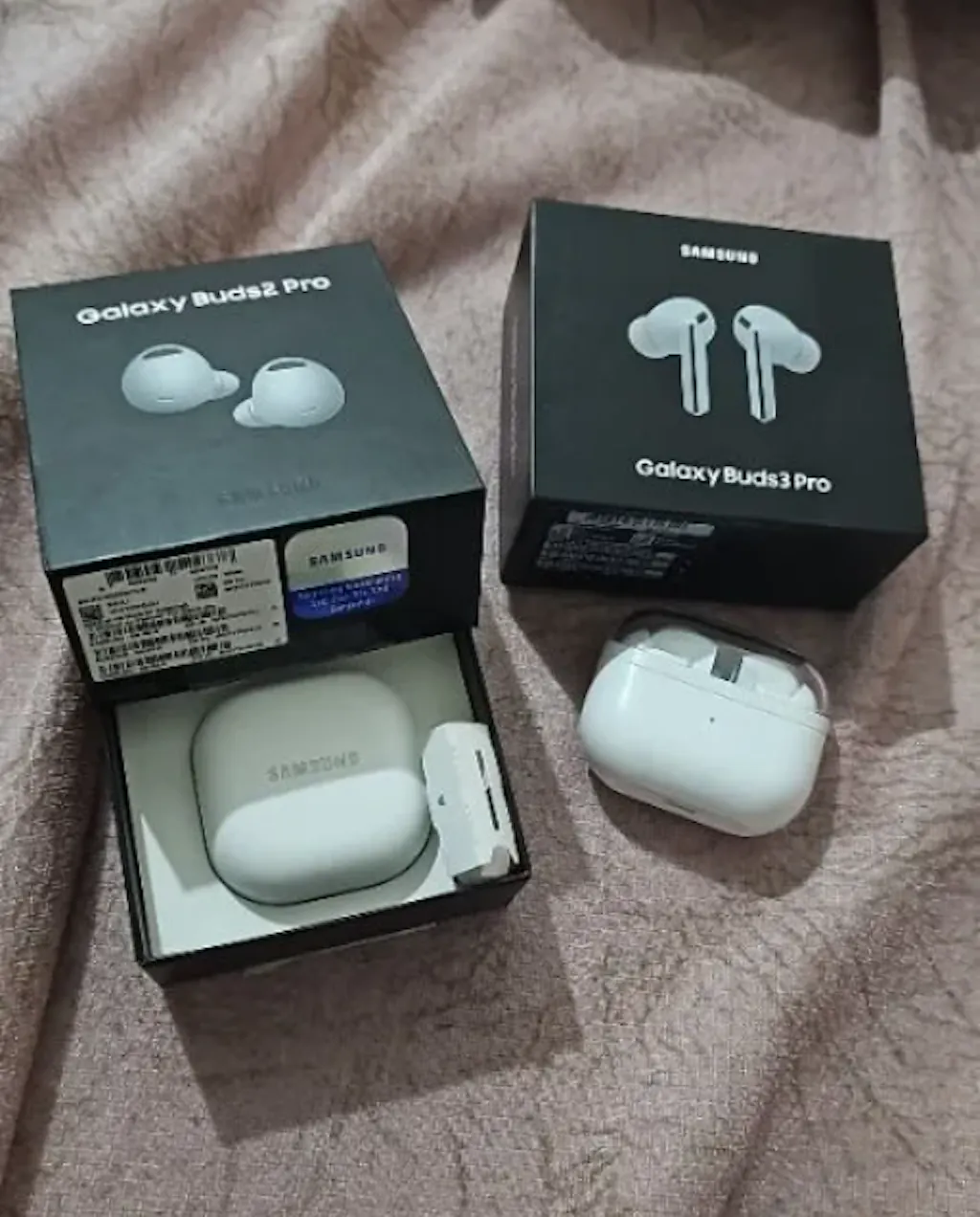
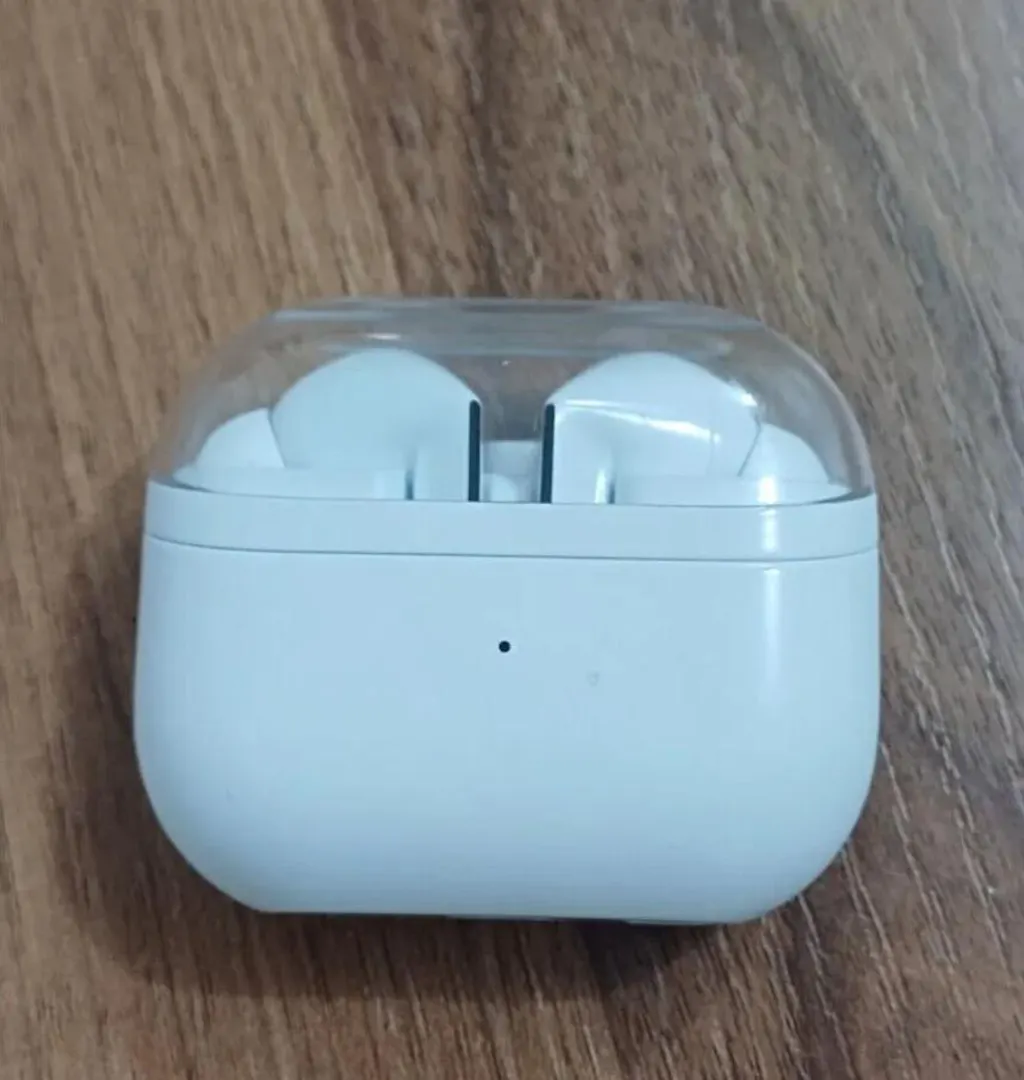
Resetting your Samsung Galaxy Buds fixes most connection, pairing, and audio issues in under 2 minutes. This complete guide covers every Galaxy Buds model — from the Galaxy Buds3 Pro and Buds4 Pro to the Buds FE, Buds Live, and Buds Core — with both app-based and manual reset methods.
Quick Reset Methods — All Models
| Model | Via App | Manual Reset | Hold Time |
|---|---|---|---|
| Galaxy Buds4 Pro | Wearable App → Reset | Both touchpads in case | 7 seconds |
| Galaxy Buds3 Pro | Wearable App → Reset | Both touchpads in case | 7 seconds |
| Galaxy Buds2 Pro | Wearable App → Reset | Both touchpads in case | 7 seconds |
| Galaxy Buds FE | Wearable App → Reset | Touch both buds in case | 10 seconds |
| Galaxy Buds Live | Galaxy Wearable → Reset | Hold bean shape in case | 5 seconds |
| Galaxy Buds Plus | Galaxy Wearable → Reset | Hold both touchpads | 7 seconds |
| Galaxy Buds Core | Wearable App → Reset | Touch both in case | 7 seconds |
How to Reset Samsung Galaxy Buds4 Pro
Method 1: Via Galaxy Wearable App (Recommended)
- Open the Galaxy Wearable app on your Android phone
- Make sure your Galaxy Buds4 Pro are connected and in your ears
- Tap Earbuds settings
- Scroll down and tap About earbuds
- Tap Reset then confirm by tapping Reset again
- Wait 10–15 seconds — the buds will restart and enter pairing mode
Method 2: Manual Reset (No Phone Required)
- Place both Buds4 Pro inside the charging case
- Keep the case lid open
- Touch and hold both touchpads simultaneously for 7 seconds
- The LED will flash red/orange — release immediately
- The buds have been reset and will enter pairing mode
Pro Tip: If one earbud isn't working after reset, place both in the case, close the lid for 10 seconds, then reopen. This syncs both earbuds.
How to Reset Samsung Galaxy Buds3 Pro
Method 1: Via Galaxy Wearable App
- Open Galaxy Wearable on your Android device
- Connect your Buds3 Pro (ensure they're in your ears or case lid open)
- Go to About earbuds → Reset earbuds
- Tap Reset to confirm
- Buds will disconnect, reset, and re-enter pairing mode automatically
Method 2: Manual Reset
- Put both Galaxy Buds3 Pro in the charging case
- Open the case lid
- Press and hold both touchpads for 7 seconds
- LED flashes white → release. Buds are reset
Factory Reset via Settings (Android)
- Go to Android Settings → Bluetooth
- Find Galaxy Buds3 Pro → tap the gear icon
- Tap Unpair
- This removes the pairing data — then re-pair fresh
How to Reset Samsung Galaxy Buds2 Pro
Via Galaxy Wearable App
- Open Galaxy Wearable
- Tap Earbuds settings → About earbuds
- Tap Reset → confirm
Manual Reset
- Place Buds2 Pro in the case, lid open
- Hold both touchpads for 7 seconds until LED blinks
- LED flashes → reset complete, now in pairing mode
Note for iOS users: Galaxy Buds work with iPhone but the Galaxy Wearable app is Android-only. Use the manual touchpad method for reset on iPhone.
How to Reset Samsung Galaxy Buds FE
Galaxy Buds FE uses a slightly different process from Pro models:
Via Galaxy Wearable App
- Open Galaxy Wearable → About earbuds → Reset
- Confirm reset — process takes about 15 seconds
Manual Reset (Buds FE)
- Place both Buds FE in the case, lid open
- Touch and hold both buds simultaneously for 10 seconds (longer than Pro models)
- The LED will blink — release. Buds FE is now reset
How to Reset Samsung Galaxy Buds Live
Galaxy Buds Live (bean-shaped) have a unique form factor — here's how to reset them:
Via Galaxy Wearable App
- Open Galaxy Wearable → earbuds must be connected
- Tap About earbuds → Reset
Manual Reset (Buds Live)
- Place both Buds Live in the charging case
- Open the lid
- Press the physical touchpad on each bud for 5 seconds
- LED flashes orange/red — reset complete
How to Reset Samsung Galaxy Buds Plus
- Open Galaxy Wearable (or Galaxy Buds+ app) → About earbuds
- Tap Reset and confirm
- Manual: Place in open case → hold both touchpads 7 seconds → LED blinks
How to Reset Samsung Galaxy Buds Core
- Open Galaxy Wearable → Earbuds settings → About earbuds → Reset
- Manual: Both buds in case (lid open) → hold touchpads 7 seconds
- LED blinks white → reset complete
Why Reset Galaxy Buds? Common Issues Fixed
| Issue | Does Reset Fix It? | Notes |
|---|---|---|
| Won't connect to phone | ✅ Yes | Most common fix |
| One earbud not working | ✅ Usually | Resyncs both earbuds |
| Audio cutting out | ✅ Often | Clears corrupt firmware state |
| ANC not working | ✅ Sometimes | Try firmware update first |
| Preparing for resale | ✅ Yes | Removes all personal data |
| Physical damage | ❌ No | Needs repair or replacement |
| Battery draining fast | ⚠️ Maybe | Also check for firmware update |
After Reset: How to Re-Pair Galaxy Buds
- After reset, your buds will be in pairing mode (LED flashing)
- Open Bluetooth settings on your phone
- If you see the old pairing, tap Forget device first
- Your Galaxy Buds will appear as a new device — tap to pair
- Open Galaxy Wearable to complete setup and restore settings
iPhone users: Galaxy Buds work with iPhone via standard Bluetooth. Go to Settings → Bluetooth → pair normally. You won't have the Wearable app, but basic audio functions work perfectly.